Citra MMJ Android 14 Best Settings – Full Performance Guide 2025
Discover the best Citra MMJ settings for Android 14. Maximize 3DS emulation performance with our complete guide covering GPU, CPU, audio, and display settings.
Android 14 introduced significant changes to how apps interact with GPU drivers, memory management, and background processes. For Citra MMJ users, these changes are a double-edged sword — they bring new opportunities to squeeze out better performance, but they also require specific setting adjustments to avoid stuttering, crashes, and audio issues. This guide covers everything you need to know about the best Citra MMJ settings for Android 14, regardless of whether you are running a flagship Snapdragon device or a mid-range phone. If you are brand new to the emulator, start with our Citra MMJ Complete Beginner Guide first, then return here to tune your settings.
💡 Quick Tip: Before changing any settings, make sure you are using the latest Citra MMJ build. Older builds have known compatibility issues with Android 14’s Vulkan validation layer changes.
Why Android 14 Changes the Game for Citra MMJ
Android 14 brought significant backend changes, especially in its graphics stack. The OS enforces stricter memory handling, and Vulkan 1.3 is now the preferred API for high-performance rendering. Citra MMJ’s MMJ fork specifically targets these improvements, making it far better optimized than the official Citra Android port for modern devices.
Key Android 14 changes that affect emulation include:
- Tighter GPU memory limits for background applications
- Better Vulkan driver compliance enforcement on OEM devices
- Changes to audio latency APIs (AAudio and OpenSL ES behavior)
- Stricter foreground service requirements that impact emulation stability
Understanding these changes helps you pick the right settings the first time rather than trial-and-error testing for hours.
General Settings to Configure First
Before diving into graphics and audio specifics, start with these foundational settings inside Citra MMJ’s main configuration panel. Getting these right ensures a stable baseline regardless of which game you are playing.
CPU Settings
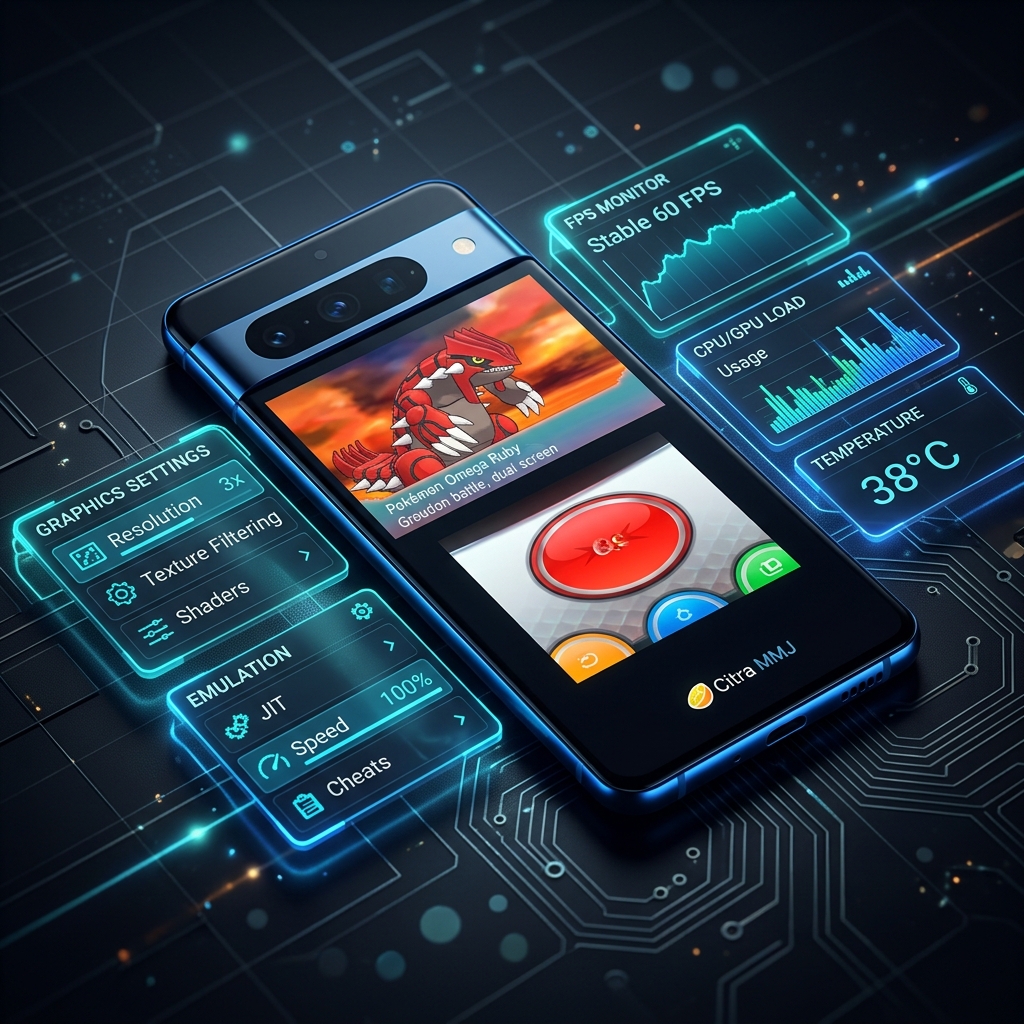
Citra MMJ’s CPU emulation accuracy versus speed slider is one of the most impactful settings on Android 14. For most users, the optimal configuration is:
| Setting | Recommended Value |
|---|---|
| CPU Clock Speed | 100% (default) — do not overclock |
| Accuracy Level | Auto — lets the emulator self-adjust |
| Enable CPU JIT | On (always) |
| New 3DS Mode | Enabled — unlocks additional CPU cores |
Keep the CPU clock at 100%. Overclocking above this on Android 14 frequently causes thermal throttling on Snapdragon 8-series devices, resulting in performance that is worse than default after 10–15 minutes of play.
Memory and Disk Settings
Enable custom texture caching to a dedicated folder if your device has more than 4GB of storage available. This dramatically reduces shader compilation stutter on first run, which is one of the most common complaints from Android 14 users upgrading from Android 12 or 13. If you have not yet installed the emulator at all, our Citra MMJ complete beginner guide covers the full installation process step by step.
Best Citra MMJ Graphics Settings for Android 14
Graphics configuration is where Citra MMJ Android 14 settings differ the most from older Android versions. The Vulkan API path has been significantly improved in recent MMJ builds and should be your primary choice on Android 14 devices.
Graphics API: Vulkan vs OpenGL ES
On Android 14, always use Vulkan. OpenGL ES is still available as a fallback but carries a measurable performance penalty on devices that support Vulkan 1.3. Vulkan’s multithreaded command submission is especially useful for 3DS titles with complex geometry like Xenoblade Chronicles 3D and Monster Hunter 4 Ultimate.
Internal Resolution
The citra mmj performance sweet spot for internal resolution depends heavily on your device’s GPU. Here is what we recommend:
| Device Category | Recommended Resolution |
|---|---|
| Flagship (SD 8 Gen 2 / 8 Gen 3) | 4x (1536×1152) or higher |
| Upper Mid-Range (SD 7s Gen 2) | 2x (768×576) to 3x |
| Mid-Range (SD 6xx / Dimensity 920) | 1x Native (native 3DS resolution) |
Shader Emulation Settings
This is one of the most important citra mmj settings for Android 14. Enable Asynchronous Shader Compilation to prevent the game from freezing every time a new shader is encountered. While this can cause very brief graphical glitches during the first few minutes of play, frame rate consistency is dramatically better with this enabled.
Additionally, enable Fast Shader Recompilation if you are on a Snapdragon 8 Gen 2 or newer. On older chips, leave this off as it can cause visual corruption.
Texture Filtering
Set texture filtering to Linear for the best balance between visual quality and performance on Android 14. Nearest-neighbor filtering looks sharper but can cause visual artifacts on upscaled resolutions. Anime4K filtering is visually stunning but requires a flagship GPU — test it at 60 seconds of gameplay before committing.
Audio Configuration for Citra MMJ on Android 14
Audio is where many users run into trouble on Android 14. The OS made changes to how audio buffers are managed, which can cause crackling, delays, or audio dropout in emulation if you use the wrong settings.
Audio Backend Selection
Use OpenSL ES as your audio backend on Android 14, not AAudio. Despite AAudio being newer, Citra MMJ’s implementation of it has a known issue at the time of writing where buffer underruns cause periodic pops during gameplay. OpenSL ES provides a more stable audio stream with lower latency on most Android 14 devices.
Audio Latency Setting
Set audio latency to Medium (100ms) as a starting point. If you experience audio dropout or crackles, increase to High (150ms). Reducing below 100ms on Android 14 risks buffer underruns during intensive game moments like boss fights and cutscenes.
Battery and Thermal Management
Android 14’s aggressive thermal management can cause Citra MMJ to throttle suddenly, breaking frame rate consistency. Counter this with the following:
- Keep the screen brightness at 50% or lower — OLED displays generate significant heat that competes with the SoC
- Enable Performance Mode in developer options if your device supports it
- Use a USB-C fan cooler or Peltier cooler during extended gaming sessions
- Close all background applications before launching Citra MMJ
⚡ Pro Tip: On Snapdragon devices, open Developer Options and set “Force GPU Rendering” to On. This routes more graphical workload to the GPU, relieving the CPU and reducing thermal pressure on intensive shaders.
Recommended Settings Summary
For quick reference, here is the complete recommended citra mmj android 14 settings profile for a mid-to-high end device:
| Setting Category | Setting Name | Recommended Value |
|---|---|---|
| CPU | CPU JIT | Enabled |
| CPU | New 3DS Mode | Enabled |
| Graphics | API Backend | Vulkan |
| Graphics | Internal Resolution | 2x (mid-range) / 4x (flagship) |
| Graphics | Async Shader Compilation | Enabled |
| Graphics | Texture Filtering | Linear |
| Audio | Audio Backend | OpenSL ES |
| Audio | Audio Latency | Medium (100ms) |
| System | New 3DS CPU Speed | 268 MHz |
Troubleshooting Common Issues on Android 14
Game Crashes at Launch
If your game crashes immediately after selecting it, switch the graphics API from Vulkan to OpenGL ES as a test. Some Snapdragon 7-series devices have a buggy Vulkan driver that causes Citra MMJ to crash on launch. A driver update from your device manufacturer may fix this permanently.
Severe Lag in Specific Games
Games like Pokémon X/Y and Fire Emblem Fates are notoriously demanding for the 3DS emulator. If these are sluggish, lower internal resolution to 1x native and disable the post-processing shaders. This alone can recover 15–25 FPS on mid-range devices.
Audio Out of Sync
Audio sync issues in Citra MMJ on Android 14 are most commonly caused by an incorrect frame limiter setting. Make sure the frame limiter is set to 100% and not “unlimited,” which causes the audio engine to desync from the rendered frames.
Final Thoughts
Getting the best citra mmj settings for Android 14 does not require expert knowledge — it just requires understanding what changed in Android 14 and applying the right configuration accordingly. With Vulkan enabled, async shading active, and OpenSL ES handling your audio, most 3DS games will run beautifully on any flagship or upper mid-range Android 14 phone. If you are still in the process of setting up for the very first time, read how to download and install Citra MMJ safely before applying these settings. Check back for updated guides as new Citra MMJ builds are released throughout 2025.