What Is Citra MMJ? Complete Beginner Guide to 3DS Emulation on Android (2025)
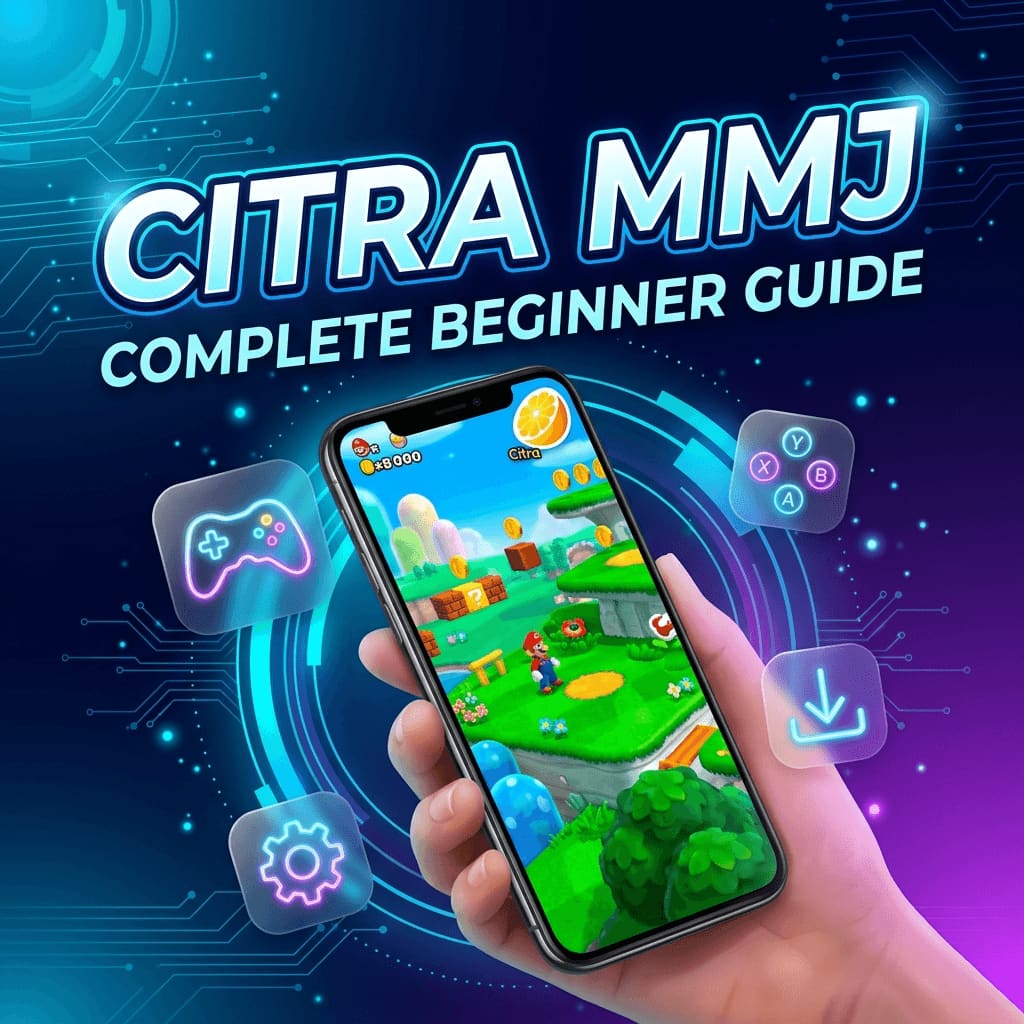
What is Citra MMJ? This complete beginner guide explains everything about the Citra MMJ emulator — how to download, install, set up, and play Nintendo 3DS games on Android step by step.
You have probably heard people talking about playing Nintendo 3DS games on their Android phones and wondered — what is Citra MMJ? Whether you stumbled across this term while searching for a way to relive your favorite childhood games or a friend recommended it, you are in the right place. This Citra MMJ complete beginner guide covers absolutely everything you need to know, from understanding what the emulator actually is, to downloading it safely, configuring it for the best performance, and launching your first game. No prior technical experience is needed — just follow along step by step.
📌 Before You Begin: All you need is an Android phone running Android 8.0 or newer, your own legally obtained 3DS game files, and roughly 10 minutes of free time. That is it.
What Is Citra MMJ?
Citra MMJ is a free, open-source Nintendo 3DS emulator designed specifically for Android smartphones. It allows you to play Nintendo 3DS games directly on your phone without needing the original handheld console. The name “MMJ” refers to the developer handle behind this particular fork — a modified version of the original Citra emulator that has been heavily optimized for mobile devices.
The original Citra project was primarily built for desktop computers running Windows, macOS, and Linux. While an official Android port existed, it was slow, buggy, and poorly optimized for the majority of Android hardware. The Citra MMJ emulator solved these problems by completely rewriting critical components of the codebase, including the graphics rendering pipeline, the audio processing system, input handling, and multithreaded CPU emulation. The result is an emulator that runs 3DS games significantly faster and more reliably on Android than any alternative available today.
Why Is Citra MMJ So Popular?
The popularity of Citra MMJ comes down to three things: performance, compatibility, and price. It is entirely free with no ads, no subscription fees, and no hidden costs. It runs smoothly on a wide range of Android devices — from budget phones to flagships — and it supports a massive library of Nintendo 3DS titles. Here is a quick comparison to help you understand why players choose Citra MMJ over other options:
| Feature | Citra MMJ | Official Citra Android | Other 3DS Emulators |
|---|---|---|---|
| Vulkan GPU Support | ✅ Full | ❌ Limited | ❌ Rarely |
| Android Optimization | ✅ Purpose-built | ⚠️ PC port | ❌ Minimal |
| Mid-Range Phone Performance | ✅ Excellent | ❌ Often poor | ❌ Poor |
| Game Compatibility | ✅ Very high | ⚠️ Moderate | ❌ Low |
| Price | ✅ Completely free | ✅ Free | ⚠️ Varies |
| Ads or Malware | ✅ None | ✅ None | ❌ Common |
| Active Community Support | ✅ Large | ❌ Discontinued | ❌ Small |
In simple terms, if you want to play 3DS games on your Android phone in 2025, Citra MMJ is the best option available — and this guide will show you exactly how to use it.
What Can You Play With Citra MMJ?
One of the first questions every beginner asks is: what games actually work? The answer is impressive. Citra MMJ supports the vast majority of the Nintendo 3DS game library, including some of the most beloved titles in gaming history:
- Pokémon X, Y, Omega Ruby, Alpha Sapphire, Sun, Moon, Ultra Sun, Ultra Moon
- The Legend of Zelda: Ocarina of Time 3D, Majora’s Mask 3D, A Link Between Worlds
- Super Mario 3D Land
- Mario Kart 7
- Animal Crossing: New Leaf
- Fire Emblem Awakening and Fates
- Monster Hunter 4 Ultimate and Generations
- Kirby Triple Deluxe and Planet Robobot
- Luigi’s Mansion: Dark Moon
- Xenoblade Chronicles 3D
Most of these titles run at full speed (30fps, the same as the original 3DS hardware) on mid-range and flagship Android devices. Some graphically intensive games like Xenoblade Chronicles 3D may require a more powerful phone or lower graphical settings, but the vast majority of the library is fully playable.
System Requirements: Can Your Phone Run Citra MMJ?
Before downloading anything, let us make sure your Android device meets the minimum requirements. The Citra MMJ emulator is well-optimized, but 3DS emulation is still computationally intensive work.
Minimum Requirements
| Component | Minimum Specification |
|---|---|
| Operating System | Android 8.0 (Oreo) or newer |
| Processor (CPU) | 64-bit ARM processor (ARMv8 / ARM64) |
| RAM | 3 GB minimum |
| Storage | 500 MB for the app + space for game files |
| GPU | Any GPU with OpenGL ES 3.2 or Vulkan support |
Recommended Specifications for Best Performance
| Component | Recommended Specification |
|---|---|
| Operating System | Android 12 or newer |
| Processor (CPU) | Snapdragon 845 or better / Dimensity 1200+ |
| RAM | 6 GB or more |
| Storage | 2 GB+ free space (for shader caches and saves) |
| GPU | Adreno 630+ or Mali-G78+ with Vulkan 1.1 |
If your phone was manufactured in 2020 or later and cost more than $200, it almost certainly meets or exceeds the recommended specs. Budget phones from 2022 onward also tend to work well for most games at native resolution.
How to Download Citra MMJ Safely
This is one of the most important sections of this complete beginner guide — getting a safe, genuine copy of the Citra MMJ APK. The internet is full of fake download sites that bundle the emulator with malware, adware, or crypto miners. Never download Citra MMJ from random APK sites, YouTube video description links, or third-party app stores.
Where to Download Citra MMJ
The only safe sources for a Citra MMJ download are:
- This official website — citrammj.com — always hosts the latest verified build
- The developer’s original GitHub repository — contains the source code and official release APKs
If a website asks you to complete a survey, click through ad walls, or download a ZIP file requiring a password — leave immediately. Genuine Citra MMJ APK files are always free, direct downloads with no strings attached.
Enable Installation From Unknown Sources
Since Citra MMJ is not available on the Google Play Store, your Android phone needs permission to install APK files from outside the Play Store. Here is how to enable this:
- Open your phone’s Settings app
- Go to Security → Privacy (or search for “Install unknown apps”)
- Find your browser or file manager in the list
- Toggle “Allow from this source” to ON
- Download the APK from this website
- After installation, you can turn this setting back OFF for security
🔒 Security Tip: Only enable “Install unknown apps” for the specific app you used to download the file (usually Chrome or your file manager). Keep it disabled for all other apps to protect your device.
Step-by-Step Installation Guide
With the APK downloaded and unknown sources enabled, installation takes under a minute:
Step 1: Locate the Downloaded APK
Open your phone’s Files app or any file manager and navigate to the Downloads folder. You should see a file named something like Citra_MMJ_latest.apk.
Step 2: Install the APK
Tap the APK file. Android will show a security prompt — tap “Install”. Wait a few seconds for the installation bar to complete. You will see a confirmation message saying “App installed.”
Step 3: Launch Citra MMJ
Tap “Open” from the installation screen, or find the Citra MMJ icon in your app drawer. On the first launch, the emulator will request storage access permissions.
Step 4: Grant Storage Permissions
This step is critical. Citra MMJ needs access to your phone’s storage to find and load game files. When the permission dialog appears, tap “Allow” or “Allow all files access” (depending on your Android version). Without this permission, your game library will remain empty and you will not be able to play anything.
⚠️ Android 13+ Users: On Android 13 and newer, you may need to go to Settings → Apps → Citra MMJ → Permissions → Files and media and select “Allow management of all files” manually.
How to Add 3DS Games to Citra MMJ
Now that the emulator is installed and running, you need to add your game files. This is where many beginners get confused, so let us walk through it carefully.
Understanding ROM Files
A ROM file is a digital copy of a game cartridge. For legal use, you must own the original physical 3DS game cartridge and dump (extract) the ROM file yourself using a modified Nintendo 3DS and tools like GodMode9. Downloading ROM files for games you do not own is piracy and is illegal — we do not support or encourage this.
Legal 3DS game files use these file extensions:
- .3ds — the most common format, a raw cartridge dump
- .cia — a digital installation format used by the 3DS eShop
- .cxi — a less common executable format
Adding Games to Your Library
- Create a game folder: On your phone, create a folder called 3DS Games (or any name you prefer) in your internal storage
- Copy your ROM files into this folder using a file manager or USB transfer from your computer
- Open Citra MMJ and tap the folder icon or “Select Games Folder” button
- Navigate to your game folder and select it
- Citra MMJ will scan the folder and display your games with cover art in the library
Once scanned, your games appear in a visual library. Simply tap any game to launch it.
Essential First-Time Settings for Beginners
Before jumping into your first game, take two minutes to configure these basic Citra MMJ settings. Getting these right from the start prevents the most common beginner problems — black screens, stuttering audio, slow performance, and crashes.
Graphics Settings (Most Important)
Open Settings → Graphics and apply the following:
| Setting | Recommended Value | Why |
|---|---|---|
| Graphics API | Vulkan | Fastest rendering on modern Android GPUs |
| Internal Resolution | 2x (768×576) | Best balance of visual quality and speed |
| Async Shader Compilation | ON | Prevents game freezing during shader building |
| Texture Filtering | Linear | Smooth textures without visual artifacts |
| V-Sync | ON | Prevents screen tearing |
| Disk Shader Cache | ON | Saves compiled shaders so future launches are faster |
💡 Budget Phone Tip: If your phone is older or budget-tier, set Internal Resolution to 1x (Native) instead of 2x. This renders at the original 3DS resolution and dramatically reduces the GPU workload.
CPU Settings
| Setting | Recommended Value | Why |
|---|---|---|
| Enable CPU JIT | ON | Critical — this is the Just-In-Time compiler that makes games playable |
| New 3DS Mode | ON | Unlocks extra CPU power for games that support it |
| CPU Clock Speed | 100% | Default is best — overclocking causes overheating |
Audio Settings
Go to Settings → Audio and configure:
| Setting | Recommended Value | Why |
|---|---|---|
| Audio Backend | OpenSL ES | Most stable audio engine for Android |
| Audio Latency | Medium (100ms) | Prevents crackling while keeping delay minimal |
| Audio Stretching | ON | Smooths audio when frame rate drops slightly |
Controls Setup
Citra MMJ comes with on-screen touch controls enabled by default. These work fine for beginners and no configuration is needed. However, if you own a Bluetooth gamepad (Xbox, PlayStation, 8BitDo, or similar), you can map it:
- Go to Settings → Controls → Gamepad
- Tap each button entry (A, B, X, Y, L, R, etc.)
- Press the corresponding button on your physical controller
- Repeat for all buttons, including the analog stick and D-pad
Launching Your First Game
With games loaded and settings configured, you are ready to play:
- Tap your game in the Citra MMJ library
- Wait patiently — the first launch takes 15–60 seconds as the emulator compiles shaders
- The game will appear in the classic 3DS dual-screen layout on your phone
- The top screen shows the main gameplay; the bottom screen is the touch panel
- Use the on-screen controls or your gamepad to play
⏳ First Launch Warning: The game may appear frozen during the first launch. Do not close the app. It is building a shader cache in the background. Subsequent launches of the same game will be much faster.
Understanding the Dual-Screen Layout
The Nintendo 3DS had two screens — a top display and a bottom touch screen. Citra MMJ replicates this on your phone. By default, both screens are stacked vertically. You can change the layout in Settings → Layout:
- Default (Portrait): Both screens stacked — best for phones held vertically
- Landscape: Top screen fills most of the width, bottom screen is smaller — best for landscape gaming with a controller
- Single Screen: Only the top screen is displayed — useful for games that do not use the touch screen
- Side by Side: Both screens displayed horizontally — good for tablets
Experiment with different layouts to find what feels most comfortable for your phone size and the game you are playing.
Save States vs. In-Game Saves
Citra MMJ supports two different save systems, and understanding the difference is important:
In-Game Saves
These are the normal save files created by the game itself (e.g., saving at a Pokémon Center). They are stored in the emulated 3DS memory and behave exactly like they would on real hardware. These saves are persistent and survive app updates.
Save States (Emulator Feature)
Save states are snapshots of the entire game at a specific moment — like hitting pause on reality. You can create a save state at any point, even in the middle of a cutscene or battle, and reload it instantly. To use save states:
- During gameplay, tap the menu icon (usually three dots or a hamburger icon)
- Tap “Save State” and choose a slot (1–5)
- To reload, tap “Load State” and select the same slot
💾 Backup Tip: Save states are stored locally. If you uninstall Citra MMJ or clear app data, they will be deleted. Periodically copy the Citra/saves/ folder to cloud storage (Google Drive, etc.) as a backup.
Citra MMJ Performance: What to Expect
Emulation is intensive work — your phone is simulating an entirely different piece of hardware in real-time. Here is what realistic performance looks like for beginners:
Frame Rate Guide
| Device Tier | Example Devices | Expected Performance |
|---|---|---|
| Flagship | Snapdragon 8 Gen 2/3, Dimensity 9200 | Full speed (30fps) in nearly all games, 60fps possible |
| Upper Mid-Range | Snapdragon 778G, Dimensity 8100 | Full speed in most games, slight slowdowns in demanding titles |
| Mid-Range | Snapdragon 695, Dimensity 920 | Playable in most games at 1x resolution |
| Budget | Snapdragon 4 Gen 1, Helio G99 | Some lighter games playable, demanding titles will struggle |
If Games Run Slowly
Do not panic — there are several things you can try:
- Lower internal resolution to 1x Native
- Switch graphics API from Vulkan to OpenGL ES (or vice versa — test both)
- Disable post-processing shader effects
- Close all background apps before launching the emulator
- Enable New 3DS Mode for supported titles
- Remove your phone case and play in a cool environment to reduce thermal throttling
Common Beginner Mistakes to Avoid
Learning from others’ mistakes saves you hours of frustration. Here are the most common errors new Citra MMJ users make:
1. Downloading From Unsafe Sources
This cannot be stressed enough. Only download Citra MMJ from this official site or the developer’s GitHub. If a site shows popups, requires surveys, or bundles the APK inside a password-protected ZIP — it is a scam. A genuine Citra MMJ download is always a direct, free APK file.
2. Not Granting Storage Permissions
If your game library is empty after adding ROM files, 99% of the time the problem is that you did not grant Citra MMJ full storage access. Go to Settings → Apps → Citra MMJ → Permissions and ensure file access is set to “Allow all.”
3. Closing the App During First Shader Compilation
The first time you launch any game, Citra MMJ needs to compile graphical shaders. This can take 15–60 seconds and the screen may appear frozen. Do not force-close the app. Wait patiently — all subsequent launches will be much faster thanks to the shader cache.
4. Running Too High a Resolution on a Weak Phone
Beginners often crank internal resolution to 4x or higher because it sounds better. On mid-range and budget phones, this will make games unplayable. Start at 1x or 2x and only increase if your phone handles it smoothly.
5. Not Enabling CPU JIT
The JIT (Just-In-Time) compiler is absolutely essential for playable performance. If it is turned off, games will run at a fraction of normal speed. Always make sure CPU JIT is enabled in settings.
6. Ignoring New 3DS Mode
Many games were patched to take advantage of the New Nintendo 3DS’s extra processing power. Enabling New 3DS Mode in Citra MMJ’s CPU settings gives these games access to additional emulated CPU cores, resulting in significantly better frame rates.
Troubleshooting Common Issues
Black Screen on Game Launch
- Switch the graphics API (Vulkan ↔ OpenGL ES)
- Make sure your ROM file is not corrupted (try re-dumping from your cartridge)
- Update to the latest Citra MMJ build from this website
- Check our detailed Citra MMJ Black Screen Fix Guide for step-by-step solutions
Audio Crackling or Popping
- Switch audio backend from AAudio to OpenSL ES
- Increase audio latency to High (150ms)
- Enable Audio Stretching in audio settings
Game Crashes After a Few Minutes
- Lower internal resolution to 1x
- Disable async shader compilation temporarily
- Make sure your phone is not overheating (remove case, reduce screen brightness)
- Close all other apps running in the background
Controls Not Responding
- Check that your Bluetooth gamepad is properly paired
- Go to Settings → Controls and remap your buttons
- If using touch controls, make sure the on-screen overlay is enabled
Error Code 11
This is a common Citra MMJ error that usually relates to missing system files or incompatible ROM formats. Read our full Citra MMJ Error 11 Fix Guide for a detailed walkthrough.
Advanced Tips for When You Are Ready
Once you are comfortable with the basics, here are some advanced features to explore:
- Custom Texture Packs: Replace the 3DS’s low-resolution textures with high-definition community-made alternatives for stunning visual upgrades
- Cheat Codes: Enable Action Replay and Gateway cheat codes through Citra MMJ’s built-in cheat manager — read our Cheats and Mods Guide
- Local Wireless Multiplayer: Connect multiple Citra MMJ instances for local wireless gameplay — see our Local Wireless Guide
- Controller Mapping: Set up complex controller profiles for different games — check our Controller Mapping Guide
- Shader Cache Sharing: Import pre-compiled shader caches to eliminate first-launch stutter entirely — learn more in our Shader Cache Explained article
- Android 14 Optimization: Fine-tune every setting for maximum performance on Android 14 — follow our Android 14 Best Settings Guide
Frequently Asked Questions (FAQ)
Is Citra MMJ free to use?
Yes, Citra MMJ is completely free — no purchase required, no subscription, no ads, and no in-app purchases. It is an open-source project distributed at no cost. If anyone asks you to pay for it, you are on a scam website.
Is Citra MMJ safe to download?
When downloaded from this official website or the developer’s GitHub repository, Citra MMJ is 100% safe. It contains no malware, no adware, and no tracking software. Only download from trusted sources and never from random APK aggregator sites.
Is using Citra MMJ legal?
The emulator itself is completely legal. Emulators are software programs and are protected by law. However, downloading ROM files for games you do not own is illegal. You must own the original 3DS game cartridge and dump the ROM yourself to use it legally.
What is the difference between Citra and Citra MMJ?
Citra is the original open-source 3DS emulator project built primarily for PC. Citra MMJ is a modified fork specifically optimized for Android devices. MMJ runs significantly better on phones due to its rewritten graphics pipeline, improved multithreading, and Android-specific optimizations.
Can Citra MMJ run all 3DS games?
Citra MMJ supports the vast majority of the 3DS library — hundreds of titles are fully playable. Some games may have minor graphical glitches or performance issues depending on your device, but compatibility improves with every update.
Do I need a powerful phone for Citra MMJ?
Not necessarily. While a flagship phone provides the best experience, many mid-range devices from 2021 onward can run most 3DS games at playable frame rates. The key is using the right settings — this guide covers everything you need.
Can I use a controller with Citra MMJ?
Absolutely. Citra MMJ supports all major Bluetooth and USB gamepads, including Xbox, PlayStation, 8BitDo, and generic Android controllers. You can map every button through the Settings menu.
Does Citra MMJ support multiplayer?
Yes, Citra MMJ supports local wireless multiplayer by connecting multiple instances of the emulator over a local network. This allows you to play games like Pokémon and Monster Hunter with friends, just like you would with two physical 3DS consoles.
Where are my save files stored?
Save files are stored in the Citra/saves/ directory on your phone’s internal storage. We strongly recommend backing this folder up regularly to cloud storage to prevent data loss.
How do I update Citra MMJ?
Simply download the latest APK from this website and install it over the existing version. Your saves, settings, and shader caches will be preserved — you do not need to uninstall the old version first.
Final Thoughts
Now you know exactly what Citra MMJ is and how to go from zero experience to playing your favorite Nintendo 3DS games on your Android phone. The entire process — downloading, installing, configuring settings, and launching your first game — takes less than 10 minutes when you follow this complete beginner guide step by step. The Citra MMJ emulator is free, safe, powerful, and continuously improving with community updates.
Start with the basic settings outlined in this guide, play a few games, and then explore our advanced guides when you are ready to push performance further. Whether you are revisiting Pokémon, mastering Zelda, or experiencing Fire Emblem for the first time — Citra MMJ makes it all possible right from your pocket. Happy gaming!