Citra MMJ Black Screen Fix – Complete Troubleshooting Guide
Tired of the black screen on launch? Learn the most effective ways to fix the Citra MMJ black screen issue on Android. Covers Vulkan errors, ROM formats, and system files.
There are few things as frustrating as configuring your 3DS emulator, loading up a fresh ROM, and being greeted by an absolute, unchanging black screen. The Citra MMJ black screen issue is one of the most commonly reported problems by new users on Android, but fortunately, it is almost always fixable.
In this guide, we’ll walk you through the four most common causes behind this issue and provide the definitive Citra MMJ black screen fix for each one.
⚠️ Before Proceeding: Make sure you are running the latest version of Citra MMJ. Older builds may have compatibility bugs with newer Android versions. Head to our download section to verify your version.
Cause #1: The Wrong ROM Format or Corrupted File
The number one reason you get a black screen in any 3DS emulator is providing it with a file it cannot actually read. 3DS dumps come in various formats, and not all of them work ‘out of the box’ with Android emulators.
Encrypted vs. Decrypted ROMs
Citra MMJ natively requires decrypted ROM files. If you dump your own cartridges (as you should) using FBI or GodMode9 on a real 3DS, the resulting files may be encrypted. When you try to load an encrypted .3ds or .cia file without the proper AES keys installed, Citra will simply show a black screen and hang.
The Fix:
- Ensure the file you are loading is specifically marked as decrypted.
- Format should ideally be .3ds or .cci.
- While
.cia(installable archives) work, they sometimes cause issues on first boot. We recommend standard decrypted.3dsfiles. - Check the file size. If a game like Pokémon Sun is only 12MB, it is wildly incomplete and corrupted. A standard 3DS game shouldn’t be much smaller than 500MB, up to 4GB.
Cause #2: Graphics API Incompatibility (Vulkan vs. OpenGL)
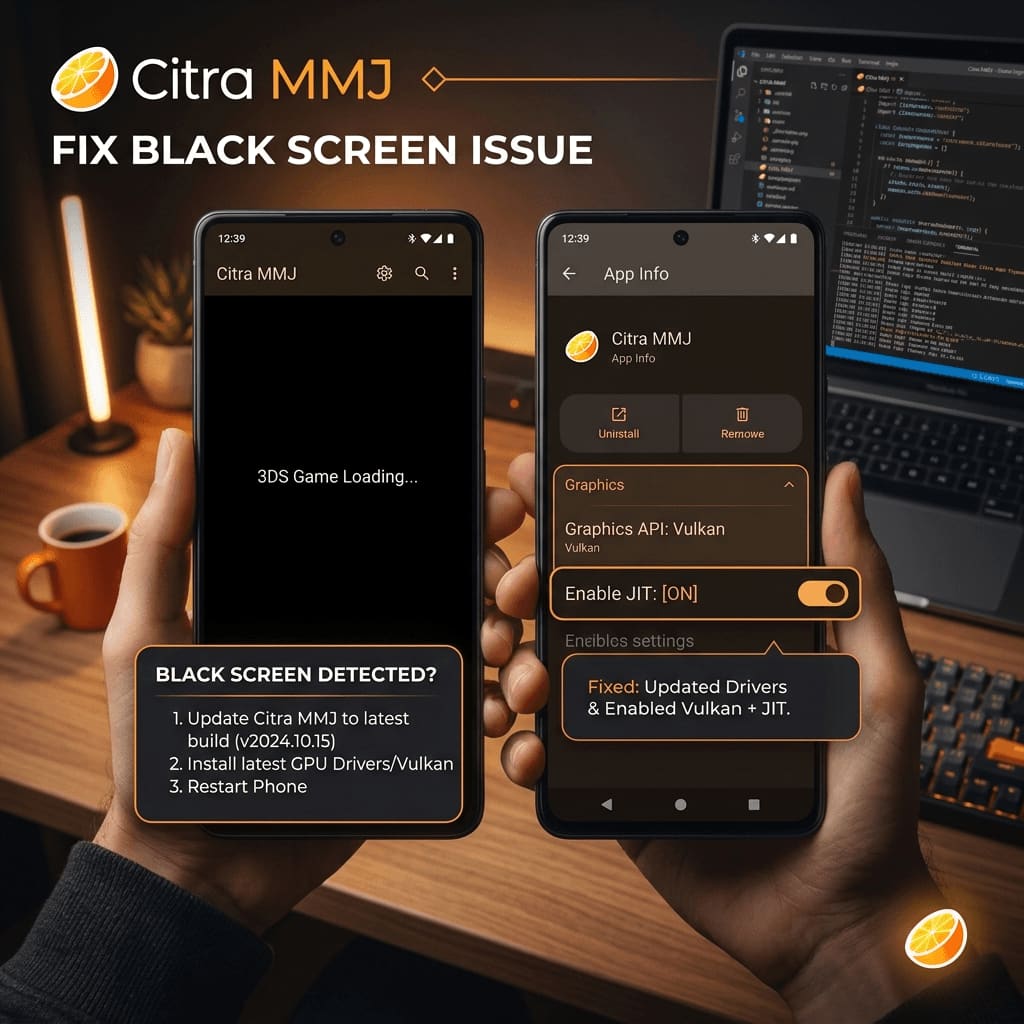
Different Android processors handle graphics APIs differently. While Vulkan is generally faster and highly recommended for Snapdragon devices, it can cause immediate black screens on older chips or specific MediaTek Dimensity processors due to driver bugs.
How to Switch Your Graphics API
If you launch a game, hear the background audio, but only see a black screen, it is almost certainly a graphics API issue.
- Open Citra MMJ, but do not start a game.
- Tap the gear icon to enter Settings.
- Navigate to Graphics.
- Find the Graphics API option.
- If it is set to Vulkan, change it to OpenGL ES. (Or vice versa).
- Force close the emulator completely, then reopen it and try your game again.
💡 Mali GPU Tip: If your phone uses a Mali GPU (Exynos, MediaTek, Tensor chips), OpenGL ES often provides better visual compatibility (fewer black screens and missing textures), even if it runs at a slightly lower frame rate than Vulkan.
Cause #3: Missing System Archives (Mii Data & Fonts)
Some games, notably Mario Kart 7, Super Smash Bros., and anything involving the Mii Maker (like Tomodachi Life), actively call upon the 3DS system’s shared font or Mii data files during boot. Because Citra MMJ does not include these copyrighted Nintendo files by default, the game freezes upon failing to find them—resulting in a black screen.
How to Provide the Missing System Files
To fix this, you must dump your system archives from a real, modded 3DS.
| Requirement | Description |
|---|---|
| Shared Font | Required by many games to render text on the title screen. |
| System Archives | Contains Mii data, required for games like MK7 and Pokémon. |
Once dumped, you must place your sysdata folder inside the citra-emu directory on your Android storage. After these files are in place, games that require them will boot normally past the black screen.
Cause #4: Aggressive Shader Compilation
If you’re getting a black screen that eventually goes away after 10-30 seconds, you are experiencing slow shader compilation. The first time you boot a game, or enter a new area, the emulator must translate the game’s shaders to work on your phone. This can stall the video output temporarily.
The Fix:
- Go to Settings → Graphics.
- Enable Async Shader Compilation (also known as Asynchronous Custom Shader Compiler).
- Enable Use Disk Shader Cache.
This allows the game to continue running (perhaps with slight graphical pop-in) rather than freezing on a black screen while it compiles rendering instructions.
Still Getting a Black Screen?
If you have verified your ROM is decrypted, switched from Vulkan to OpenGL, installed your system archives, and enabled async shaders… and you still have a black screen, here are two final steps:
- Clear the Cache: Go to your Android App Settings, find Citra MMJ, and clear its app Cache (Do not clear Data, or you will lose your saves!).
- Disable Custom Textures: If you installed an HD texture pack, a memory leak or invalid file path might cause a crash on boot. Turn off “Use Custom Textures” in the settings.
Following this Citra MMJ black screen fix guide should resolve the issue for 99% of users. For more advanced performance tuning once your game is actually running, be sure to check out our Citra MMJ Best Settings guide.
📌 Freezing instead of a black screen? A black screen happens at boot, before anything renders. If your game boots fine but then hangs partway through — often right after a save — that’s usually corrupted CEC extdata, not a rendering issue. See our freeze/CEC data fix guide.