Citra MMJ Zelda Ocarina of Time Setup – Complete Performance Guide
Learn how to set up and play The Legend of Zelda: Ocarina of Time 3D on Citra MMJ. Best settings, performance fixes, and tips for a smooth 60fps experience on Android.
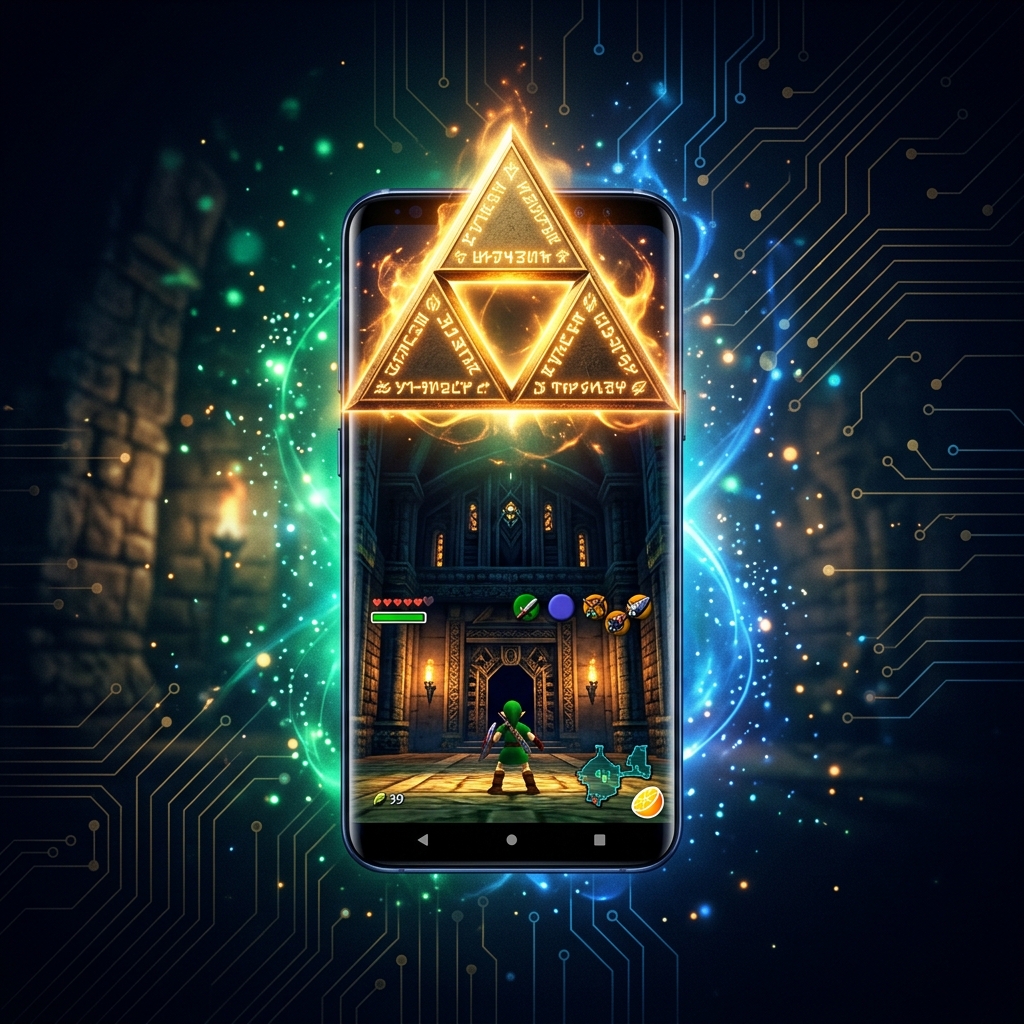
The Legend of Zelda: Ocarina of Time 3D is considered one of the greatest video games ever made — and the Nintendo 3DS remaster is the definitive way to experience it. With Citra MMJ, you can play this legendary adventure natively on your Android phone with HD graphics, smooth frame rates, and even gyroscope-controlled aiming. This Citra MMJ Zelda Ocarina of Time setup guide walks you through everything: the correct emulator settings, gyro configuration, compatibility notes, and fixes for the most common issues reported by players.
If you have never used Citra MMJ before, start with our Citra MMJ complete beginner guide to get the emulator installed and your first ROM loaded before coming back here for game-specific configuration.
🎮 Game Info: The Legend of Zelda: Ocarina of Time 3D (2011) — ROM format: .3ds or .cia — Rated: Good compatibility in Citra MMJ on mid-range and flagship Android devices.
How Well Does Zelda Ocarina of Time Run on Citra MMJ?
Zelda: Ocarina of Time 3D is one of the best-supported titles in Citra’s compatibility database. The game was one of the first 3DS titles officially tested by the Citra development team, meaning its emulation has been refined over years of community contributions. On modern Android hardware, you can expect the following performance:
| Device Tier | Expected FPS | Compatibility |
|---|---|---|
| Flagship (SD 8 Gen 2 / 8 Gen 3) | Stable 60fps | ✅ Excellent |
| Upper Mid-Range (SD 7s Gen 2 / Dimensity 8200) | 55–60fps | ✅ Great |
| Mid-Range (SD 6xx / Dimensity 920) | 40–55fps | ⚠️ Good |
| Entry-Level (SD 4xx / Helio G85) | 25–40fps | ⚡ Playable |
The game’s original frame rate target is 60fps, which makes it relatively lightweight compared to titles like Xenoblade Chronicles 3D. Even mid-range devices can achieve a smooth, enjoyable experience with the right configuration.
Recommended Citra MMJ Settings for Zelda OOT
These settings have been tested specifically for Zelda Ocarina of Time 3D on Citra MMJ. They are different in some ways from the general settings guide — for example, OOT 3D behaves better with specific shader settings than the defaults.
Graphics Settings
| Setting | Recommended Value | Notes |
|---|---|---|
| Graphics API | Vulkan | Use OpenGL ES if you see black sky/water glitches |
| Internal Resolution | 3x (flagship) / 2x (mid-range) | 3x gives a near-HD look without major slowdown |
| Async Shader Compilation | Enabled | Prevents freezes on boss arena entry |
| Accurate Multiplication | Disabled | Enabling this causes slowdown in water areas |
| Texture Filtering | Linear | Bicubic may cause subtle HUD artifacts |
| Post-Processing Shader | None or FXAA | FXAA softens jagged edges subtly |
| Stereoscopic 3D | Off | Not needed; wastes GPU resources |
⚠️ Known Issue: Some Vulkan drivers on MediaTek devices render water surfaces incorrectly in Zora’s Domain and the Water Temple. If you see solid black water, switch to OpenGL ES as a temporary fix.
CPU Settings
Zelda OOT 3D benefits significantly from the New 3DS Mode CPU emulation. Enable this in Settings → System to unlock higher clock speeds and better performance in open areas like Hyrule Field, which tends to dip on weaker devices without it.
| Setting | Value |
|---|---|
| Enable CPU JIT | On |
| New 3DS Mode | Enabled |
| CPU Clock Speed | 100% (do not overclock) |
| Ignore Format Reinterpretation | Enabled (can fix rare graphical issues) |
Audio Settings
Zelda OOT 3D’s iconic soundtrack deserves proper audio configuration. The game uses dynamic music layers that fade in and out depending on your situation — this is particularly sensitive to audio buffer issues. Use these settings for the best audio experience:
| Setting | Value |
|---|---|
| Audio Backend | OpenSL ES |
| Audio Latency | Medium (100ms) |
| Enable Audio Stretching | On (prevents crackling during load transitions) |
| Volume | 100% |
Setting Up Gyroscope Controls for OOT 3D
One of the most immersive features of Zelda OOT 3D is the gyroscope-based first-person aiming. When you equip the bow, slingshot, or use the Ice Arrows in first-person view, you can physically tilt your phone to aim — exactly as you would on a real 3DS. Citra MMJ fully supports this via your Android device’s built-in accelerometer and gyroscope.
Enable Motion Controls in Citra MMJ
- Open Citra MMJ and go to Settings → Controls
- Scroll down to the Motion section
- Set Motion Provider to Android Sensor
- Enable Gyroscope support
- Set sensitivity to 0.006 — this matches the native 3DS feel closely
💡 Tip: If gyro aiming feels too sensitive or sluggish in-game, adjust the sensitivity value slightly. Most players find a value between 0.005 and 0.008 feels natural for bow aiming in the Spirit Temple.
Controller Button Mapping for OOT 3D
If you are using a physical Bluetooth gamepad with Citra MMJ, here is the recommended button mapping that mirrors the original 3DS control scheme for OOT 3D:
| Gamepad Button | 3DS Function |
|---|---|
| Left Stick | Circle Pad (Movement) |
| Right Stick | C-Stick (Camera) |
| A | A Button (Action/Confirm) |
| B | B Button (Back/Roll) |
| X | X Button (Open Menu) |
| Y | Y Button (Quick Equip) |
| LB / L2 | L Button (Z-Target lock) |
| RB / R2 | R Button (Shield/Strafe) |
| View / Select | Select (Map) |
| Menu / Start | Start (Pause) |
Ocarina of Time 3D Performance Tips by Area
Different areas in Zelda OOT have different performance characteristics on Citra MMJ. Here is what to expect and how to optimize for each major zone:
Hyrule Field (Overworld)
This open area can cause moderate frame drops on mid-range devices because of the large draw distance. Enable New 3DS Mode and keep internal resolution at 2x rather than 3x if you notice dips below 50fps while riding Epona. The field is shader-heavy on first visit — give it 30–60 seconds to warm up before judging performance.
Dungeons (Jabu-Jabu, Forest Temple, Water Temple)
Dungeons run significantly better than the overworld due to enclosed spaces and lower geometry complexity. These areas are where you can safely boost to 3x or 4x internal resolution and enjoy the remaster’s improved textures in full quality. The Water Temple specifically benefits from Linear texture filtering to prevent tiling artifacts on its water surfaces.
Boss Fights
Boss arenas trigger heavy shader compilation on first encounter. Thanks to Async Shader Compilation, these will no longer cause hard freezes, but you may see brief graphical anomalies during the first few seconds of each new boss fight. This is entirely normal and resolves within 2–3 seconds as the shaders compile in the background.
Cutscenes
OOT 3D’s cutscenes are rendered in real-time, not pre-rendered video. On mid-range devices, cutscenes may occasionally dip to 50fps. This is acceptable and not a sign of a problem — simply enjoy the story knowing that gameplay will perform better than these narrative moments.
Common Issues and Fixes for Zelda OOT on Citra MMJ
Black Screen on Launch
If the game boots to a black screen, the most common cause is a corrupted or incorrectly dumped ROM file. Verify your ROM’s file extension is .3ds or .cia and that the file size is approximately 1.5–2.0 GB. A second common cause is missing system files — Citra MMJ sometimes requires 3DS system files (AES keys) for licensed games. Ensure your sysdata folder is correctly placed inside the Citra MMJ directory.
Audio Popping During Music Transitions
The dynamic music system in Zelda OOT is particularly sensitive to audio buffer size. If you hear clicks or pops when entering a new area or during combat, increase your audio latency to High (150ms) and enable Audio Stretching. This eliminates 90% of audio transition artifacts reported by players.
Z-Targeting Not Working
If Z-Targeting (the lock-on system) does not respond, check that your L button mapping is correctly assigned. In Citra MMJ on-screen controls, the L button is the top-left shoulder region of the virtual controller layout. Tap it to confirm it registers input. If using a physical gamepad, remap it explicitly via Settings → Controls → Gamepad.
Ocarina Minigame Lag
The Scarecrow’s Song and other ocarina sequences require precise timing input. If there is input lag during these sections, lower your audio latency to Low (50ms) specifically for these moments — the precision gain outweighs the minor audio crackle risk for these short sequences.
Visual Enhancement Tips for OOT 3D
Beyond the core setup, these optional enhancements make Zelda Ocarina of Time on Citra MMJ look even better than the original 3DS hardware:
- Internal Resolution at 3x or 4x — dramatically improves texture sharpness on Link’s model and environmental details
- FXAA Post-Processing — eliminates the slight jaggedness visible on fence posts and stone edges in Kakariko Village
- Anisotropic Filtering at 16x — sharpens textures at oblique angles, most notably on the corridor floors in Ganon’s Castle
- Custom Textures — the community has created HD texture packs specifically for OOT 3D that work with Citra MMJ’s custom texture loading feature
🏆 Best Visual Config (Flagship Devices Only): Vulkan API · 4x Internal Resolution · 16x Anisotropic Filtering · FXAA · Linear Texture Filter · New 3DS Mode On. This combination makes Zelda OOT 3D look genuinely next-generation on a modern Android display.
Final Thoughts on Playing Zelda OOT with Citra MMJ
The Citra MMJ Zelda Ocarina of Time setup is one of the most rewarding emulation experiences you can have on Android. The game runs beautifully on modern hardware, gyro aiming adds a fresh dimension to gameplay you may not have tried before, and the HD resolution upscaling makes the remaster’s improved visuals truly shine on a large phone display. Whether you are replaying a childhood favorite or uncovering it for the first time, Citra MMJ delivers it at its absolute best.
For the technically optimal performance on your specific Android version, make sure to also read our Citra MMJ Android 14 best settings guide for Vulkan driver tuning and thermal management tips that apply beyond any single game.